I did have some ..... well to say the truth, a lot of trouble in getting wireless to work in ubuntu. Mine being an atheros 242x 5007eg card kind of saved me from the hectic work as most of the nice people in the ubuntu development section had already put the critical code on how to get the WIFI up with ubuntu.
For a first time user, all those can be very hectic. I didn't understand what ndiswrapper was or what madwifi was. I went about reading lot of forums/posts to get an idea on how to go about them. And to say the truth, I'm happy that I did some reading because I have got nearly each and every component in my laptop to work - from the wifiadapter to its led. Explain the 2 major wifi drivers in linux in as simple terms as possible.
ndiswrapper - using a driver created by atheros/microsoft for windows operating system in linux using a wrapper around it to work properly in linux.
madwifi - Open source linux wifi drivers running on top of proprietary HAL(Hardware Abstraction layer). I got the above sentence from madwifi site. They are also working on the new drivers to madwifi namely the ath5k and ath9k. Go here
madwifi.org to learn much more about the madwifi. There are some excellent madwifitools available that can be of extreme use to the users
Most of them have used both and feel that both of them are equally good, though I felt the ndiswrapper was slightly better and the faster method.
So what both the drivers do is to detect the wireless card on your system. It doesn't scan for networks automatically and connect to them and all. Just tell the OS that there is a wireless card in your system.
Here I'll try illustrating the step to get your wireless card to be detected in your system. I did use the ndiswrapper method, so I'll go about it first.
Ubuntu/kubuntu 8.04 comes with a version of madwifi installed that doesn't account for much. It didn't work for me. So I went for ndiswrapper, just because it was easy to install than madwifi. But still madwifi will be the future in linux.
1)NDISWRAPPER:-First you have to disable the madwifi drivers from being loaded at startup as you are going to use the ndiswrapper. This can be done in 2 steps.
First, If you are using ubuntu, goto "System–>Administration–>Hardware Drivers” and disable by un-ticking the following option. Incase of kubuntu , goto "System->Hardware Drivers Manager" and do the same.
For making sure that the system does'nt load these drivers automatically at restart, execute the following command in a terminal or console.
echo “blacklist ath_pci” | sudo tee -a /etc/modprobe.d/blacklist
(enter your account password if asked to at this point)
The /etc/modprobe.d/blacklist is actually like a text file, so open and check whether the line "blacklist ath_pci" is added to it using gedit or kate.
Restart the system after the previous step.
Now you can install the ndiswrapper(with ndisgtk) in your laptop
Incase of adept manager in kubuntu, just search for ndiswrapper and ndisgtk and install the following packages:- ndiswrapper-common, ndiswrapper-utils-1.9 and ndisgtk. Incase of synaptic in ubuntu, you might have to enable the multiverse and universe repositories. This can be done by following the steps in this page in the ubuntu wiki -
here.
After installing the above softwares, you'll get the "Windows wireless Drivers" menu either in "System->Administration" or "System" menu. Click on it. A window as below will open up.
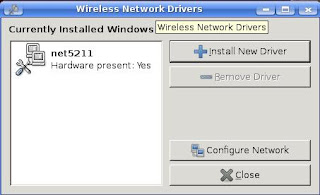
In this window, click on "Install New Driver" and point to "net5211.inf". This file is one of the many files in a zip file that has to be downloaded from atheros directly if possible. The name of the driver file that worked for me was from acer site itself, the link was
ftp://ftp.work.acer-euro.com/notebook/aspire_5110/driver/Wireless_Atheros_V5.3.0.67_XP_XB63_XB62(WHQL).zip unzip this file and traverse to "Wireless_Atheros_V5.3.0.67_XP_XB63_XB62(WHQL)/Drivers/XP-x32" folder in the zip file. There you can find the 32-bit wireless drivers i.e. net5211.inf file. If you are ot able to get this driver, the try getting an atheros driver that is atleast WHQL (that could do).select it and install the driver.
After installing, just check whether the line after the driver name in ndisgtk changes to hardware present is "YES". That means you have installed the right drivers for your wireless card. If it shows that the hardware is not present, then you might need to try some other drivers, or check for the correct wireless card in your laptop.
After installing ndiswrapper drivers, open a console/terminal check whether you are able to detect your network by typing the command
iwlist wlan0 scan
(it can be wlanX or even ethX or athX, you can check that by using the command ifconfig or iwconfig in a terminal/console to see the correct name of your wireless interface.)
If you are not able to see any networks, then try scanning again, after pressing any wireless button(if any present) that you use for turning on your wireless. For me (aspire 4720z), this button was at the top of the laptop keyboard. You should be able to detect some network like this:-
wlan0 Scan completed :
Cell 01 - Address: 00:1E:40:40:C4:36
ESSID:""
Protocol:IEEE 802.11g
Mode:Managed
Frequency:2.462 GHz (Channel 11)
Quality:96/100 Signal level:-34 dBm Noise level:-96 dBm
Encryption key:on
Bit Rates:1 Mb/s; 2 Mb/s; 5.5 Mb/s; 11 Mb/s; 18 Mb/s
24 Mb/s; 36 Mb/s; 54 Mb/s; 6 Mb/s; 9 Mb/s
12 Mb/s; 48 Mb/s
Extra:bcn_int=100
Extra:atim=0
IE: IEEE 802.11i/WPA2 Version 1
Group Cipher : CCMP
Pairwise Ciphers (1) : CCMP
Authentication Suites (1) : PSK
If you get something like the above that means, you are able to detect your network properly. If your network is unencrypted or uses WEP encryption, you should be able to browse right away using Network Manager in ubuntu or KNetwork Manager in kubuntu, after giving necessary ip settings and WEP passwords etc. I did prefer WIFI-Radar, as It did detect my network automatically and I was able to browse instantly.
All this time, the wireless LED, if any on some acer laptops would not have worked or worked with very little brightness. I'll explain on how to get that working in the future posts. Next I'll give an brief overlook of madwifi installation.


